
Define a Bonus Earn Rule
Bonus Earn Rules represent formulas used to calculate additional Metrics that a Member can earn if the order meets certain qualifications.
The platform supports the following types of conditions:
-
Location: Only purchases made from a list of eligible locations qualify for the bonus.
-
Purchase Amount: Only purchases of a specified amount or higher qualify for the bonus. Optionally, you can further qualify this condition by providing a list of items that count toward the purchase amount; items not on this list are not counted toward the qualifying purchase amount.
-
Purchase Quantity: Only purchases containing a specified number of items or higher qualify for the bonus. Optionally, you can further qualify this condition by providing a list of items that count toward the purchase quantity; items not on this list are not counted toward the qualifying quantity.
-
Purchase Method: Only purchases made with a specified payment type and / or a payment network qualify for the bonus.
-
Segment Membership: Only Members in the selected Segment(s) are eligible for the bonus.
-
Tier Membership: Only Members in the selected Tier(s) are eligible for the bonus.
Optionally, you can define multiple Bonus Earn Rules with different conditions and different Metric calculations. The platform evaluates the Bonus Earn Rules in the order in which they appear on the screen, starting at the top and working down.
This article describes how to create a new Bonus Earn Rule from scratch. You can also copy an existing Bonus Earn Rule to use as the starting point; see Copy a Bonus Earn Rule for more information.
To define a new Bonus Earn Rule:
-
Select Rules from the top navigation bar, then select Order Rules from the side navigation menu. The Order Rules screen is displayed.
-
Search for and select the desired Order Rule (see
-
Select the Bonus Earn Rules tab.
-
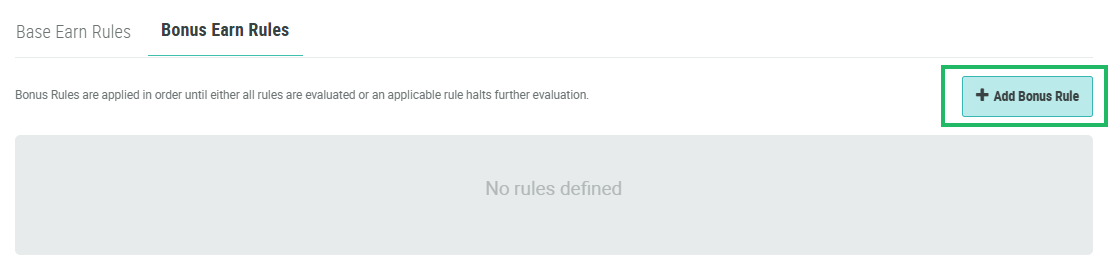
Click Add Bonus Rule. The New Rule pop-up window is displayed.
-
In the Display Name field, enter a name for the new rule.
-
Optionally, in the Description field, enter a description of the new rule.
Note: The best practice recommendation is to include meaningful descriptions that describe the Bonus Earn Rule conditions, especially if you're using the Bonus Summary API feature. This feature returns the Bonus Earn Rule Description in the API response.
-
Click Save. The platform displays the configuration options for the new rule. This area is separated into different sections, each of which is described below in more detail.
-
Enter the conditions for the Bonus Earn Rule.
-
Click Save.
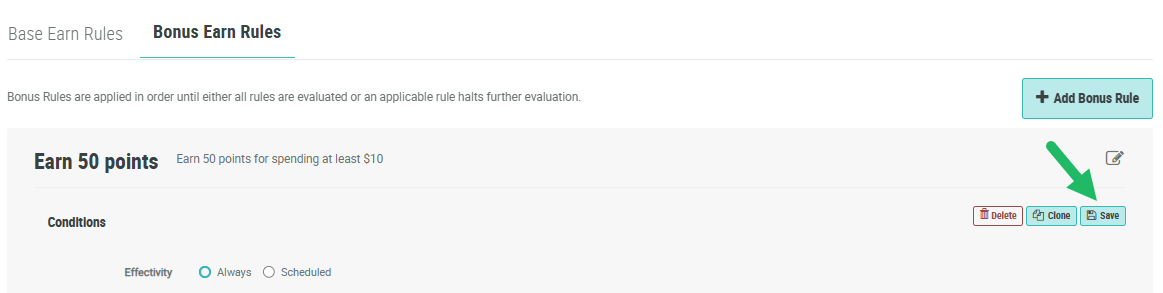
Conditions
The Conditions section of the Bonus Earn Rules tab allows you to define one or more conditions. The Member's purchase must meet these conditions in order for the purchase to earn the Metrics from this Bonus Earn Rule. This section contains a wide range of configuration options that let you customize the Bonus Earn Rule to meet your specific marketing strategy.
If you define multiple conditions within a Bonus Earn Rule (for example, a location and a minimum order amount), the order must meet ALL of the conditions within the Bonus Earn Rule in order to qualify. That is, all conditions configured within a Bonus Earn Rule are joined with an AND connector.
The options in this section are as follows:
-
Effectivity: Optionally define a time period during which this Bonus Earn Rule applies. Select either:
-
Always: This Bonus Earn Rule doesn't expire.
-
Scheduled: Enter a start date and end date, and select a time zone.
-
-
Rule Applies: Select either:
-
Always: This Bonus Earn Rule always applies.
-
Only When Giving Largest Bonus: This option is relevant only if you have multiple Bonus Earn Rules defined. If this option is selected, the platform will evaluate all Bonus Earn Rules, then apply ONLY the largest Metric accrual to the final total. For example, let’s say you have three Bonus Earn Rules. The Member earns 50, 0, and 100 points from the three rules. Only the largest (100) will be added to the Member’s point total for this order.
-
-
Eligible Locations: By default, the Bonus Earn Rule applies to purchases made at all locations. Optionally, to limit the rule to apply only to purchases made at one or more specified locations, uncheck All Locations. In the search field, enter all or part of the location name, then check one or more locations, and click Save. Repeat this step as needed.
-
Minimum Qualified Item Quantity: Optionally, you can set an item quantity threshold that must be met for the Bonus Earn Rule to be applied. For example: “buy 3 qualifying items and earn an extra 100 points.” If the Member doesn’t purchase enough qualifying items, the rule is not applied. To enable this condition, enter the item quantity threshold. Please note the following restrictions:
-
Only items in the Qualifying Items list (see below) count toward meeting the condition.
-
Fully discounted items do not count toward meeting the condition.
-
Any items in the Excluded Items list (see below) are ignored, and do not count toward meeting the condition.
-
-
Minimum Qualified Item Amount: Optionally, you can set a minimum order value threshold applied to qualifying items only. For example: “buy $50 worth of qualifying items and earn an extra 50 points.” If the Member doesn’t spend enough on qualifying items, the rule is not applied. To enable this condition, enter the order value threshold. Please note the following restrictions:
-
Only items in the Qualifying Items list (see below) count toward meeting the condition.
-
Any items in the Excluded Items list (see below) are ignored, and do not count toward meeting the condition.
-
-
Minimum Order Amount: Optionally, you can set a minimum order value threshold that must be met for the Bonus Earn Rule to be applied. Unlike the conditions described above, this condition always applies to all items. For example: “spend more than $10 and earn an extra 10 points.” If the order value doesn’t meet the threshold, the rule is not applied.
-
Qualifying Items: Optionally you can specify that only certain items or products are counted toward qualifying for this Bonus Earn Rule. You can define qualifying items using one of the following methods:
-
Product SKU: This option allows you to enter the Stock Keeping Unit (SKU) numbers for items that should be included in the Metric calculation. In the Qualifying Items field, enter one or more SKUs for items to be included.
-
Product Category: This option allows you to enter entire product categories that should be included in the Metric calculation. To include all the items in a Product Category, check Categories. Then enter one or more Product Categories in the Qualifying Items field.
-
Lookup: This option allows you to store information about qualifying items within a Lookup table. When Loyalty receives the order information from the POS API, the platform checks if the items in the order exist in the selected Lookup table, and if so, includes them in the Metric calculation. To use a Lookup Table to define included items, check Lookup. Then select the desired Lookup table from the drop-down menu.
-
-
Excluded Items: Optionally you can exclude certain items or products from being counted toward qualifying for this Bonus Earn Rule. You can define excluded items using any of the following methods:
-
Product SKU: This option allows you to enter the Stock Keeping Unit (SKU) numbers for items that should be excluded from the Metric calculation. In the Excluded Items field, enter one or more SKUs for items to be excluded.
-
Product Category: This option allows you to enter entire product categories that should be excluded from the Metric calculation. To exclude all of the items in a Product Category, check Categories. Then enter one or more Product Categories in the Excluded Items field.
-
Lookup: This option allows you to store information about excluded items within a Lookup table. When Loyalty receives the Order information from the POS API, the platform checks if the items in the order exist in the selected Lookup table, and if so, excludes them from the Metric calculation. To use a Lookup Table to define excluded items, check Lookup. Then select the desired Lookup table from the drop-down menu.
-
-
Payment Type: Optionally you can configure the Bonus Earn Rule to apply only to orders placed using a specific payment method, such as credit card or cash. From the Payment Type drop-down menu, select the desired payment method.
-
Payment Network: Optionally you can configure the Bonus Earn Rule to apply only to orders placed using a specific payment network, such as Visa or Discover. From the Payment Network drop-down menu, select the desired payment network.
-
Minimum Payment Amount: If a customer splits a purchase across multiple payment methods, optionally you can configure the Bonus Earn Rule to apply only to orders where a certain portion of the purchase amount was made via the above selected Payment Type and / or Network. In the Minimum Payment Amount field, enter the desired minimum amount.
Member Eligibility
The Member Eligibility section allows you to target this Bonus Earn Rule only to Members included in a specified Segment (or Segments), and / or Members who belong to a specified Tier (or Tiers). For example, you could have a special promotional Bonus Earn Rule that applies only to your Gold Tier Members.
If you select both a Segment and a Tier, a Member must meet both conditions to qualify for this Bonus Earn Rule.
The options in this section are as follows:
-
Included Segments: Optionally, to target this Bonus Earn Rule to Members in a Segment, select the desired Segment from the drop-down menu. Repeat this step as needed to assign additional Segments. If you select multiple Segments, a Member must belong to only one of the Segments to qualify for the Bonus Earn Rule. That is, multiple Segment selections are joined with an OR connector.
-
Included Tiers: Optionally, to target this Bonus Earn Rule to Members in a Tier, select the desired Tier from the drop-down menu. Repeat this step as needed to assign additional Tiers. If you select multiple Tiers, a Member must belong to only one of the Tiers to qualify for the Bonus Earn Rule. That is, multiple Tier selections are joined with an OR connector.
Bonus
The Bonus section is used to define the formula for how Metrics are calculated for this Bonus Earn Rule.
-
From the first drop-down menu, select what quantity to use in the Bonus Earn Rule calculation:
-
Eligible Sub-total: Use the total value of the order.
-
Item Amount: Use the combined total value of qualifying items in the order.
-
Fixed Amount: Use a flat value instead of a calculation.
-
Qualifier Item Quantity: Use the number of qualifying items in the order.
-
-
In the Multiplier field, enter the multiplier to be used to calculate the Metrics earned from this Bonus Earn Rule. Or, if you selected Fixed Amount above, enter the fixed value.
